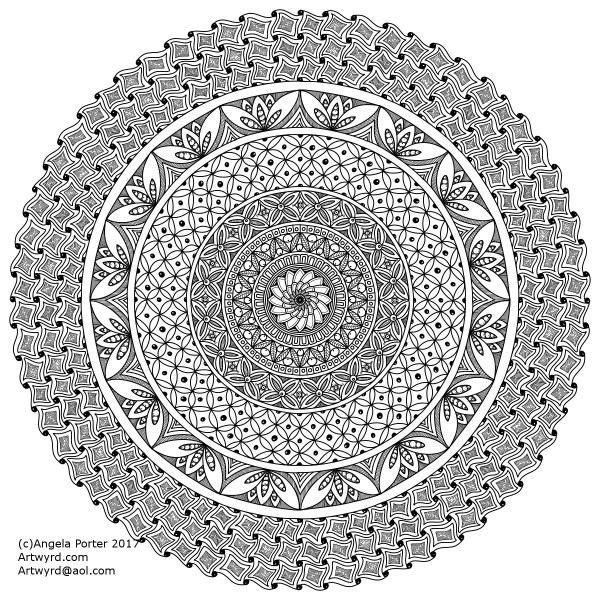
Dragonfly mandala

DragonflyMandalaWatermarked_AngelaPorter_19June2017

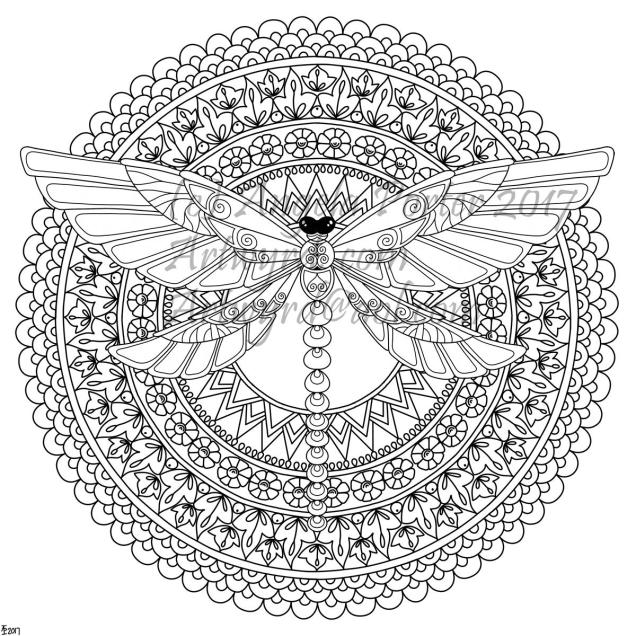
Over the last couple of days, my focus has been on designing mandalas.  I also have been learning a little more about Autodesk Sketchbook Pro and how I can import images, cut them and have them as an opaque image that ‘floats’ on top of other layers or designs.  The image above is an example of the work I’ve done.

My only issue with it is that I’ve used too thick a pen for the mandala. Now I know how to do this, I can always re-do the mandala part, or the dragonfly!

I also spent a fair part of yesterday doing some mixed media work.  A friend of mine asked if I’d do something with her wedding speech for one of her family so it’d become a keepsake for them.

I’d been puzzling about how to do it, when inspiration struck with the colours I needed to use, and off I went!  I’ll post a photo of it once the wedding is all done!

One dragonfly

Dragonfly13patterned_AngelaPorter_17June2017

Seeing as I’ve focused on butterflies over the past few days, I didn’t want to have dragonflies feeling they’ve been overlooked.  So, I have a few templates done and saved, and so far I’ve added patterns and shading to one.

Oh, I’ve also worked out how to add a watermark to my art to try to protect its copyright…just have to remember to add a watermark to every image of my art I upload now…

Of course, I’ve been drawing on my Surface book in Autodesk Sketchbook Pro…no better way to get to work out how the software works for me and with me!

More butterflies

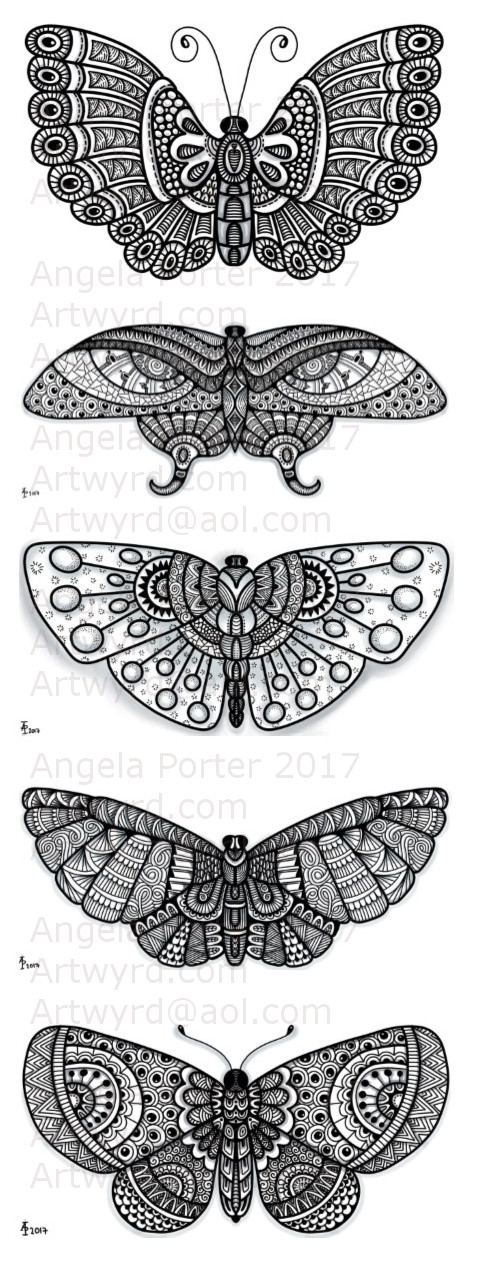
FourPatternedButterflies_AngelaPorter_17June2017

Another four patterned butterflies, drawn using Autodesk Sketchbook Pro on a Microsoft Surface Pen with the Microsoft Surface Pen as the input device.

Butterflies

Butterfly 3 patterned_AngelaPorter_16June2017Butterfly 8 patterned_AngelaPorter_16June2017

I used Autodesk Sketchbook Pro on my Microsoft Surface Book along with my Surface Pen to add patterns and shading to two of the butterfly outline designs I drew yesterday.  I’m happy with the results.

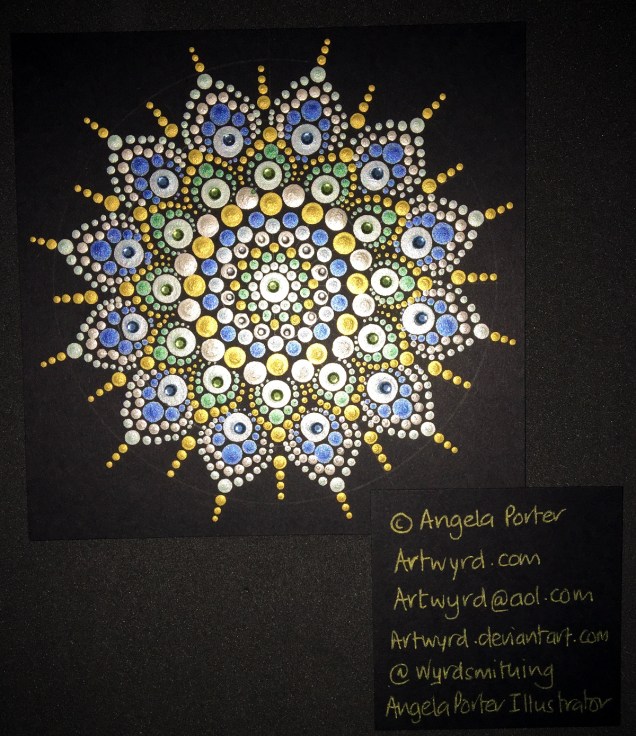
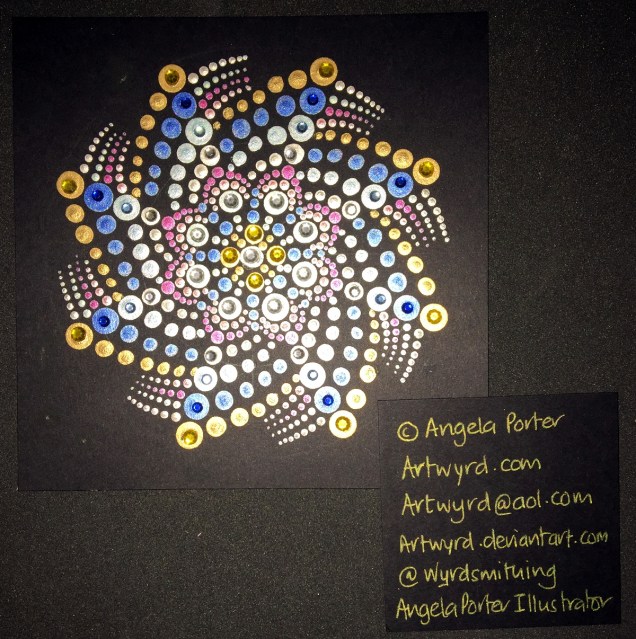
Today I’ve also created two more dot mandalas, each around 5″ in diameter.  I added some gems to those, as well as to the small dot mandalas I created over the last couple of days.  The sparkle really adds something special to them, and helps to emphasise the circularity of mandala designs.

DotMandala1_16June2017_AngelaPorterDotMandala2_16June2017_AngelaPorterDotMandalaCards_16June2017_AngelaPorter

Dot Mandala Cards, Butterflies and Fungi

Digital drawings

ButterfliesForMixedMedia_15June2017_AngelaPorter

FungiForMixedMedia_15June2017_AngelaPorter

Over the past couple of days I’ve continued working on my Microsoft Surface Book using Autodesk Sketchbook Pro to create digital images for used in card making and mixed media projects.  IFungi and butterflies have been my chosen subjects, and you can see some of them in the images above.  They’ve also been digitally coloured, though I’ve still got dots and lines to add to them to give more depth and dimension to them.

They’re all now cut out and sitting waiting to be used in various projects.  There’s still more drawings carefully filed away on the Surface Book for future uses…

Dot Mandala Cards

DotMandalaCards2_15June2017_AngelaPorter

DotMandalaCards_15June2017_AngelaPorter

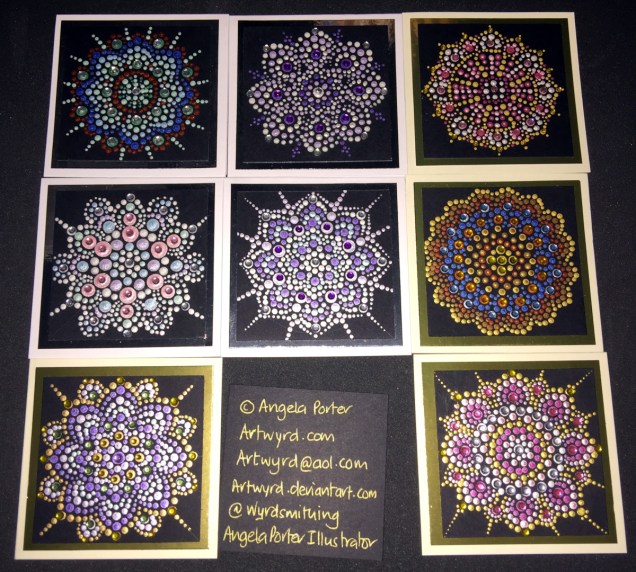
I’ve also have a bit of fun creating some teeny-tiny dot mandalas.  Each card base is just 3″ x 3″ (approx. 7.5cm x 7.5cm).  The black card I used as the substrate is 2½” square (approx. 6.25cm).

The acrylic paints I used are either metallic or pearlescent, so they do catch the light rather nicely.

Drawing on the surface


Pastel fungi2

Over the past few days, I’ve been spending a lot of time exploring Autodesk Sketchbook Pro on my Microsoft Surface Book.

I’ve been playing with colouring things, mostly in a very ‘flat’, almost marker-like kind of way, but also trying out different digital mediums and textures.

In the last hour or two, I thought I’d give drawing with pencil and pastel a go, something I’ve not been happy working with in the digital environment.  This is partly due, I think, to me not being familiar with working with the Surface Pen and becoming comfortable with drawing where I don’t rest my hand on the substrate I’m working on.  It’s only through working and working with the Surface and Surface Pen have I achieved this, and unconsciously so.  Perseverance really does pay off.

This is my first drawing with pencil and pastel on the Surface … and I’m quite happy with it.  It’s certainly something I’m going to work at a lot more.

Mixed media index cards – 5 June 2017; my own library of digital drawings

AngelaPorter_5June2017_MixedMediaIndexCard1

Mixed media index cards

Two index cards worked on over the last day or two.  The focal points are shells I drew, first on paper, then the image was worked on on my Surface book with Autodesk Sketchbook Pro and my Surface Pen,

I had to use scissors to cut out the shells (not my favourite task as I’m not good with scissors) after I’d coloured them using the Chameleon Color Tones and Color Tops marker pens.  I’m really pleased with the colouring.

Lots of different techniques/media were used on the index cards – stamping, stenciling, inktense pencils, distress inks and distress oxide inks, pebeo dyna paints, perfect pearls sprays, gesso, clear holographic embossing powder from WOW!

I’m happy with them, though I’m not sure they’re quite finished, especially the little one.

Digital drawing library

I’m beginning to build up a library of my own digital drawings – fungi, flowers, shells at the moment, oh and one angler fish skeleton that I’ve not used yet (but that’s an idea for later or tomorrow maybe).

I have to decide if I put these images together as packs of ‘digi-stamps’ for sale…I’m really pleased with my shells here, but the fungi have worked out fine too.  With my limited scissor skills, I’m keeping it in mind I need to keep the outlines relatively simple, but the inside of the design can be rather detailed, which is fun.

Today’s mixed media ACEOs/ATCs

ACEOs_30May2017_AngelaPorter

Today’s ACEOs/ATCs

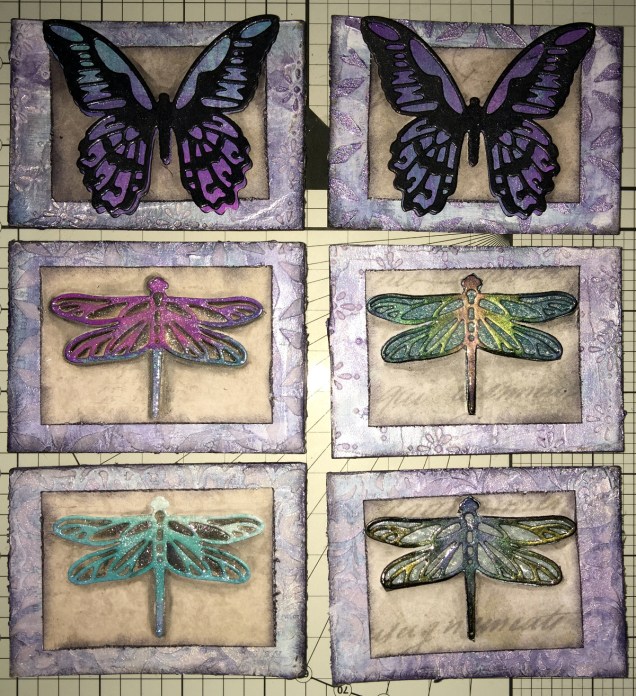
Today I’ve created a set of six ACEO/ATC cards using dragonflies and butterflies as focal images.

The photograph doesn’t do them much justice; the backgrounds are shiny purple and silver with some stenciled patterns created using modelling paste.  Peeking through in places are patterns from some reprints of first series Ordnance Survey maps as well as some torn text from an old mathematics text book.

I couldn’t work out how to use my cogs and gears on these, but remembered all the patterned paper I have, so I had a bit of a furtle through  and found some paper that looked nice against the busy background, which also the focal images looked good on.  Indeed, they look like mounted specimens.

I got the focal images from my stash, already painted.  However, I did put some painted and embossed papers behind the wings of two of the dragonflies, which looks quite nice.  I did add a wash of iridescent medium to all the focal images (can’t avoid adding some sparkle).

On returning from an appointment, I decided I would cover the dragonflies with 3D Crystal Lacquer, which has worked out really well I think (difficult to photograph though).

I’m really quite pleased with these ACEOs/ATCs; they’re simple, yet they just work and satisfy my need for ornate, sparkle and shine.  I’m glad I used the patterned paper to crated a calmer centre to mount the focal images on.

I don’t think I’m going to add any words/quotes to these, though a few gems or similar may be in order once the crystal lacquer has fully dried.

Drawing focal images

One thing I thought of as I was using the die cuts for focal images, is that I do need to find the confidence/courage to draw my own.  I have done some fungi, flowers and ammonites, but haven’t printed them out at the right size, yet.

Also, it may be that using the surface to do drawings for this may not be the best way for me to work; my drawings do tend to turn out a little too ‘perfect’ for my liking in some ways.  I’m still doing my best to work out how I can get my Surface Book to work for me as I’d like it too.  However, if I don’t use the smoothing tools in the software, the pen wobble just is totally annoying (it’s also something that is inherent in the Surface Pen/Surface book, which I really hope Microsoft will do something about sooner rather than later.

It’s really easy to use dies to cut out images for use, but to create my own…well…but we’ll see if I manage to use my own drawings in the next batch of ACEOs/ATCs.

So, my job this evening (apart from going out to do some food shopping) is to do some drawings, on watercolour paper I think, to cut out and use as focal images.

Oh, using scissors is a bit of an issue for me.  Despite me being right handed with pens and so on, I use scissors in my left hand.  In fact, there are quite a few things I can do with either hand, and many things I’m equally as bad at with either hand, such as using a badminton racquet or golf club!  Don’t ask.  Anyway, back to the scissors.  I’ve always struggled using scissors well, and I’m worse with left-handed scissors than I am with right-handed scissors.  Craft knives and me tend to be a slightly dangerous pairing – for me, not for anyone else!  I’m ok if I’m using a rule to cut straight lines, but anything else, well …

So, I will persevere, and perhaps the mistakes I make won’t be as noticeable to myself…
Mandalas a-plenty

Mandalas, Mia Chambers and Autodesk Sketchbook Pro musings

Mandala B1_Small_AngelaPorter_15May2016Mandala B2_small_AngelaPorter_15May2017

This morning, I’ve drawn the two mandalas above.  I used Autodesk Sketchbook Pro on my Microsoft Surface Book to do this.

I’m gradually exploring the features of Sketchbook Pro, and the more I use it, the more I like it, though making the transition from paper to digital drawing isn’t as easy as I thought it would be.  This is mainly because I find it hard to work at a detail level that doesn’t require a magnifying glass to see the detail or to add colour – particularly important when I’m doing work for colouring books.

This is partly because of the ability to zoom in so much on the artwork, and partly due to the screen size on my Surface Book being a little smaller than A4.

I have considered getting a Surface Studio, but that’s on hold until I’m sure I really want to go down the digital drawing route.  Having such a big screen is an alluring prospect, being able to work on the paper size at it’s actual size…but I’m still thinking about it.  Maybe when I find out my tax bill for the previous financial year I’ll make my mind up.

Now, these aren’t the first mandalas I’ve drawn using Sketchbook Pro.  In the past three or four days I’ve some some small ones (approx 3″x3″) to print out, colour and mount on blank greeting cards to be sold to raise money for Mia Chambers, Rainbow Warrior Princess to get her to America for experimental cancer treatment not available in the UK.

What I’ve always found tedious as well as a tad challenging mathematically, is setting out the angles and so on for a symmetrical mandala.  Sketchbook pro makes that easy for sure, as well as saving on the time in creating symmetry.

I’m still struggling with the idea that I may be ‘cheating’ by doing this.  However, I can logically accept that the tools available in Sketchbook Pro allow me to focus on my creativity far more.  Also, the ability to zoom in means I can add details and so on I couldn’t do easily when working on paper.

I have used mandala templates I’ve drawn on paper and scanned in Sketchbook pro to draw mandalas, as well as using sketched out designs so I can neaten up the sketch and add details (it saves erasing pencil lines and the mess and wrinkled paper and smudged in that can result).  I don’t really need to mention how easy it is to undo mistakes.

Certainly, the symmetry option makes creating these mandalas a lot quicker, and because I don’t strive for total perfection in the hand-drawn lines or added patterns, then even though the mandalas are drawn in a digital environment, they still have that feeling of being drawn by hand, which makes me happy – they’re still ‘perfectly imperfect’!

Of course, I’ve not really got to grips with colouring the designs in Sketchbook Pro, so printing them out and adding colour using a chosen medium is still my favoured way of working.  Also, I can add things like metallic highlights and sparkly gems to the mandalas, plenty of which appears on the cards I’ve made as well as the mandalas I’ve framed in order to raise money for little Mia.