Mandalas, Mia Chambers and Autodesk Sketchbook Pro musings

Mandala B1_Small_AngelaPorter_15May2016Mandala B2_small_AngelaPorter_15May2017

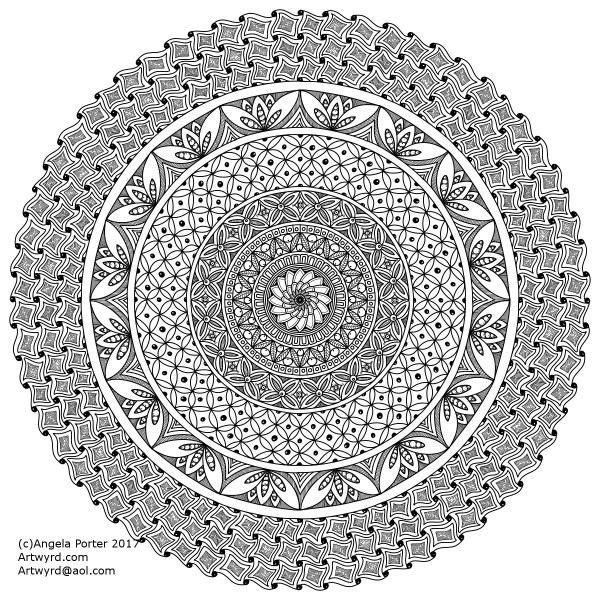
This morning, I’ve drawn the two mandalas above.  I used Autodesk Sketchbook Pro on my Microsoft Surface Book to do this.

I’m gradually exploring the features of Sketchbook Pro, and the more I use it, the more I like it, though making the transition from paper to digital drawing isn’t as easy as I thought it would be.  This is mainly because I find it hard to work at a detail level that doesn’t require a magnifying glass to see the detail or to add colour – particularly important when I’m doing work for colouring books.

This is partly because of the ability to zoom in so much on the artwork, and partly due to the screen size on my Surface Book being a little smaller than A4.

I have considered getting a Surface Studio, but that’s on hold until I’m sure I really want to go down the digital drawing route.  Having such a big screen is an alluring prospect, being able to work on the paper size at it’s actual size…but I’m still thinking about it.  Maybe when I find out my tax bill for the previous financial year I’ll make my mind up.

Now, these aren’t the first mandalas I’ve drawn using Sketchbook Pro.  In the past three or four days I’ve some some small ones (approx 3″x3″) to print out, colour and mount on blank greeting cards to be sold to raise money for Mia Chambers, Rainbow Warrior Princess to get her to America for experimental cancer treatment not available in the UK.

What I’ve always found tedious as well as a tad challenging mathematically, is setting out the angles and so on for a symmetrical mandala.  Sketchbook pro makes that easy for sure, as well as saving on the time in creating symmetry.

I’m still struggling with the idea that I may be ‘cheating’ by doing this.  However, I can logically accept that the tools available in Sketchbook Pro allow me to focus on my creativity far more.  Also, the ability to zoom in means I can add details and so on I couldn’t do easily when working on paper.

I have used mandala templates I’ve drawn on paper and scanned in Sketchbook pro to draw mandalas, as well as using sketched out designs so I can neaten up the sketch and add details (it saves erasing pencil lines and the mess and wrinkled paper and smudged in that can result).  I don’t really need to mention how easy it is to undo mistakes.

Certainly, the symmetry option makes creating these mandalas a lot quicker, and because I don’t strive for total perfection in the hand-drawn lines or added patterns, then even though the mandalas are drawn in a digital environment, they still have that feeling of being drawn by hand, which makes me happy – they’re still ‘perfectly imperfect’!

Of course, I’ve not really got to grips with colouring the designs in Sketchbook Pro, so printing them out and adding colour using a chosen medium is still my favoured way of working.  Also, I can add things like metallic highlights and sparkly gems to the mandalas, plenty of which appears on the cards I’ve made as well as the mandalas I’ve framed in order to raise money for little Mia.

Colorist app update

Doodleworlds1

I was pleased to be told by Shelly and Kelly at Faction Apps that there’s been an update to the Colorist app.  That means I had to have another play!

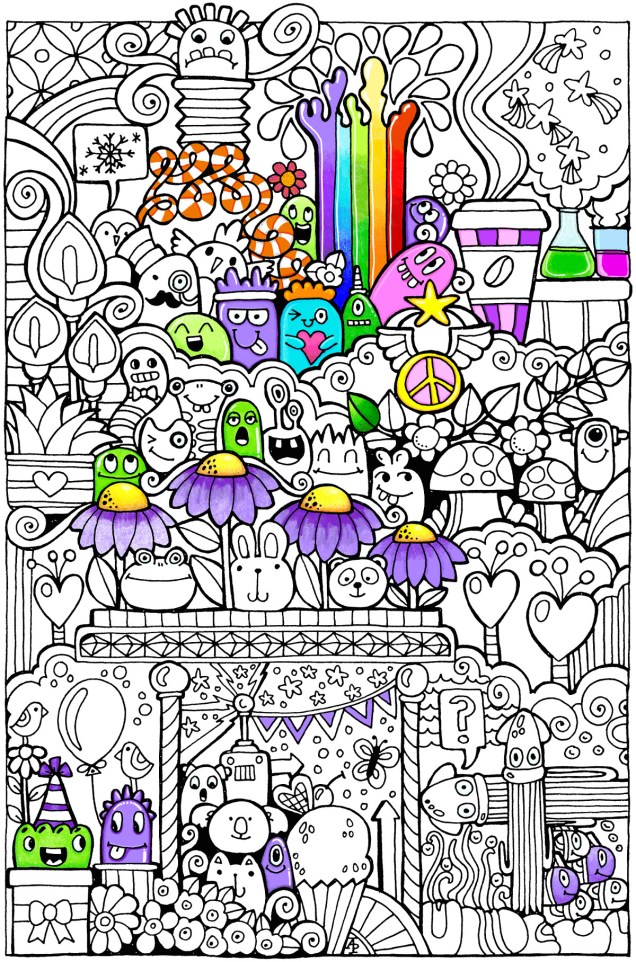
The image above is one from my first book for the Colorist app – Doodle Worlds.  Many areas have been filled in using the original pencil tool, which is great as it allows for overlaying of colours as well as being pressure sensitive if your device allows for that (my Microsoft Surface Book certainly does!).

It took me a while to get used to how the pencil works in the app, but that’s not a problem as either the undo or eraser tools allow you to completely remove anything you’re not happy with.  (The eraser is also useful for removing colour to create a highlight!).

Bucket Tool

One of the new tools is a bucket-fill, which is great for filling areas with flat, solid colour.  I used this tool for the pink monster.  The pencil tool can then be used to add shading/highlights over the base colour.

A useful tool is the bucket tool as it allows for quickly filling areas with a solid colour, even teeny-tiny areas thanks to the ability to zoom in on the image! This saves some time and effort, which can then be spent on carefully adding the shading and highlights to the area.

Marker Tool

This is my favourite addition to the tool box in the Colorist app!  I love the solid colour it lays down. The colours aren’t transparent, however, so blending isn’t yet possible with them ( perhaps that’ll appear in a future update of the app).  Markers (especially Chameleon pens) are my favourite way of adding colour to drawings like this on paper, so I look forward to this tool being developed more in the future (fingers crossed and maybe a bit of pleading from me!).

What I love most about this tool is that I can draw and doodle and add texture and pattern to the image with the solid lines that I prefer in my art. I did this with ease on the flower next to the orange and white stripey twisty thing.

The wide range of colours available in the colour palette mean that highlights and shadows can be achieved, so long as a subtle blend from one colour to another isn’t required.  However, I’ve just thought that a clever use of the pencil tool may allow this to happen.  I’ll have to try that out!

Eyedropper tool

I didn’t make any use of this tool, but I’m likely to in the future as it means that you can easily select a colour you’ve previously used in the image being coloured without going to the palette and ttrying to remember just which shade of, say, blue it was you used.

Sketching in the Colorist App

Angela one

The ability to sketch within the app, and save the drawings too, is the fab new feature.  I really like this, especially with the marker pen tool.

Usually, I use Autodesk Sketchbook  for drawing on my Surface book.  One of the weird things about drawing on the Surface with the pen is that there always seems to be some wobble in the line, even if the line drawn is smooth.  Autodesk has a smoothing tool, which in the Pro version you can set to a level that suits the art  you are doing at the time.

Although the Sketch function in Colorist doesn’t have the smoothing tool (yet?) it works just as well as Sketchbook for the kind of doodly, abstract, whimsical art I do.  The image above is a drawing I did in Colorist last night, it took an hour or so to achieve.

I enjoyed using this function, though not being able to rotate the digi-paper meant it was a tad awkward for me to draw certain things.  However, Colorist isn’t designed as a  dedicated drawing/art app, but I do wonder if a ‘pro’ version could be developed where a small fee is paid for such a functionality. The latest updates certainly suggest to me that there’s a possibility that this could be a direction the app could take in the future.

My verdict

I really like the updates, especially the marker and the sketch function. Congratulations to all at Faction Apps!

The suggestions I’ve made above for extending the additions in the future are not criticisms of the great updates made, but they would take this app beyond that of being just a colouring app, so I’m well aware they may not happen.

However, I do believe this app could evolve from being a colouring app into something more…

Doodle, illustration from 11 Feb 2017

angela-porter20170211_0016-watermarked

I’ve done it!  I’ve worked out how to easily add a watermark to my scanned artwork to try to protect it as I share it online.

Autodesk Sketchbook Pro made it a doddle to do and so I’ll make sure I do this in the future.

To draw this one I found, after much searching, my Rotring Rapidograph pens.  It’s been a while since we were acquainted with each other, but yesterday was the day!  I’d forgotten what a joy they can be to draw with.  Also, unlike the UniBall UniPin or Sakura Micron pens I generally favour to draw with, I don’t wreck the nibs in a short space of time. I must press a lot harder than I think I do with them…

So, onwards to more art.  A lesson learned about protecting my ownership of my art and some control of it when I release an image of it into the wilds of the world weird web.

Winter Wreath Coloured

The second of the templates I posted yesterday has been coloured.  I went with a cooler colour palette than I would usually choose.

Coloured using Caran D’Ache Luminance pencils and a blending solution was used, which actually brought out the colours beautifully!

I also forgot to mention that these wreaths were drawn in Autodesk Sketchbook on my Microsoft Surface Book.